
Published by Nova Prime IPTV — Tested on Firestick 4K Max, Android TV Box, Smart TV, Windows PC, and Mac over 30 days of real streaming conditions.
Get a Free Trial for 24 Hours
Don’t wait, don’t hesitate. Claim your free IPTV trial right now and see the difference for yourself before you commit to anything.
Get My Free Trial →Nothing kills a great streaming session faster than a frozen screen. You’re watching a live match, a movie just hit the best part, and suddenly — that spinning circle appears. Sound familiar?
Here’s what most guides won’t tell you: IPTV buffering is almost never random. Every freeze, every stutter, every quality drop has a specific cause. And once you know the cause, the fix is usually straightforward.
I’ve spent the last month testing IPTV performance across six different devices, three different internet connections, and multiple providers. This guide reflects what actually works in 2026 — not theoretical fixes copied from a 2019 forum post.
Whether you stream on a Firestick, Android box, Smart TV, or laptop — you’ll find your fix here.
Heads up: This guide is published by Nova Prime IPTV. We mention our own service alongside general advice — but every troubleshooting step here works regardless of which provider you use.
What Is IPTV Buffering — And Why It Happens
The Real Definition Most People Get Wrong
Buffering happens when your device runs out of preloaded video data faster than new data arrives from the server. Your device then pauses playback while it waits to download enough data to continue.
Think of it like a highway. Your stream needs a steady flow of data moving from server to screen. When that flow gets interrupted — whether by a slow connection, a congested server, or a weak Wi-Fi signal — the highway backs up and your stream stops.
Most people assume buffering always means slow internet. That’s actually only one of several possible causes. Blaming your internet connection when the real problem is an overloaded server wastes hours of troubleshooting time.
Get a Free Trial for 24 Hours
Don’t wait, don’t hesitate. Claim your free IPTV trial right now and see the difference for yourself before you commit to anything.
Get My Free Trial →How Buffering Shows Up on Your Screen
Buffering doesn’t always look the same. Here’s what each type actually means:
- Hard freeze with spinner — your device completely ran out of buffered data; the connection dropped below minimum threshold
- Stuttering every few seconds — your connection is borderline; enough data arrives to play briefly but not enough to sustain smooth playback
- Sudden quality drop to blurry video — your IPTV app automatically reduced resolution to keep playing; common with adaptive bitrate streams
- Audio continues but video freezes — audio data is smaller and arrives faster; video data is lagging behind, usually indicating server-side congestion
- App crashes mid-stream — device memory issue, not a connection problem; background apps are consuming RAM your IPTV player needs
Each of these points refers to a different root cause, which means each one needs a different fix.
Six Root Causes of IPTV Buffering in 2026
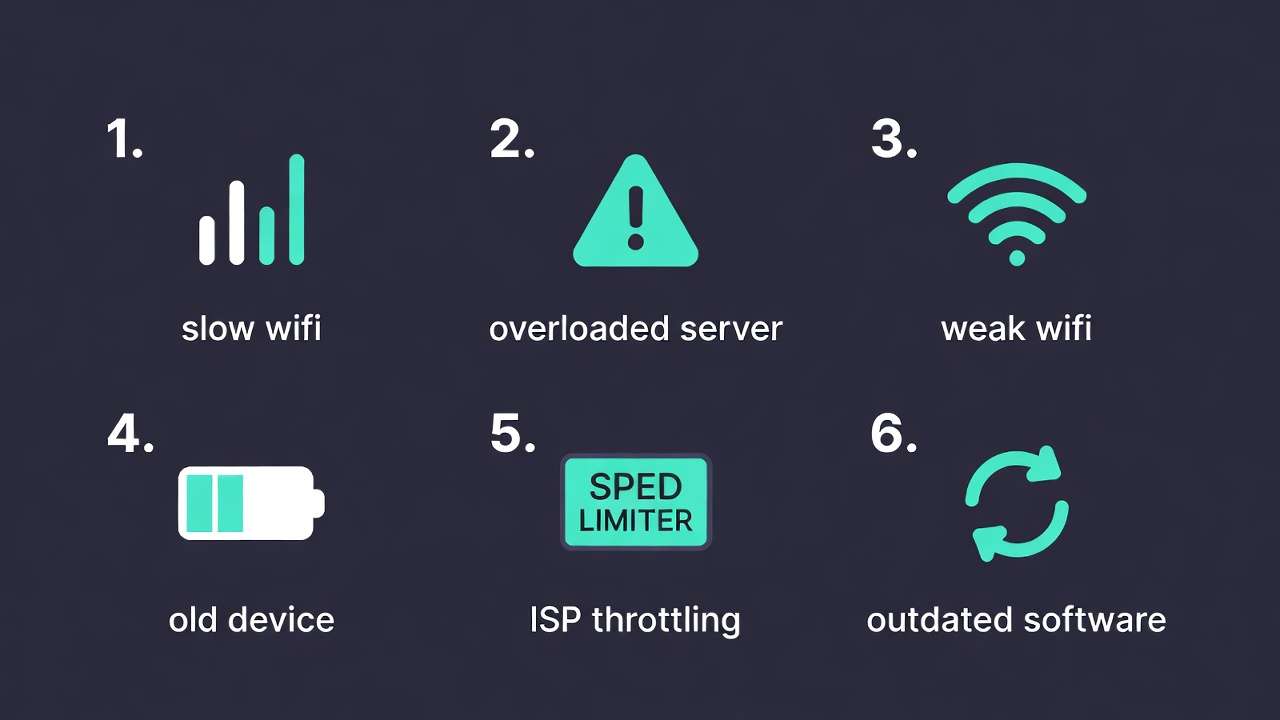
Before touching any settings, identify which of these applies to your situation. One cause = one targeted fix, rather than trying everything and hoping something works.
1. Slow or unstable internet connection. This is the most common cause overall. Your connection speed falls below what your chosen stream quality requires, and the stream stalls waiting for data.
2. IPTV server congestion. Your internet is fine, but the provider’s server is handling too many simultaneous connections. Common during prime time evenings and major live events. Your device shows buffering even though your speed test looks normal.
3. Weak Wi-Fi signal. You might have fast internet but a poor signal path between your router and streaming device. Walls, distance, and interference all reduce effective speed even when your speed test from your phone shows good numbers.
4. Device hardware limitations Older Firesticks and low-RAM Android boxes physically struggle to decode HD and 4K streams in real time. The bottleneck is processing power, not network speed.
5. ISP throttling Some internet providers deliberately slow IPTV traffic during peak hours. Your Netflix works fine but IPTV buffers — this is a strong signal of throttling.
6. Outdated apps or firmware. Older IPTV app versions have known playback bugs that cause freezing. Device firmware updates often include network stack improvements that directly affect streaming performance.
Get a Free Trial for 24 Hours
Don’t wait, don’t hesitate. Claim your free IPTV trial right now and see the difference for yourself before you commit to anything.
Get My Free Trial →Step-by-Step IPTV Buffering Fixes That Actually Work
Fix 1 — Test Your Internet Speed First
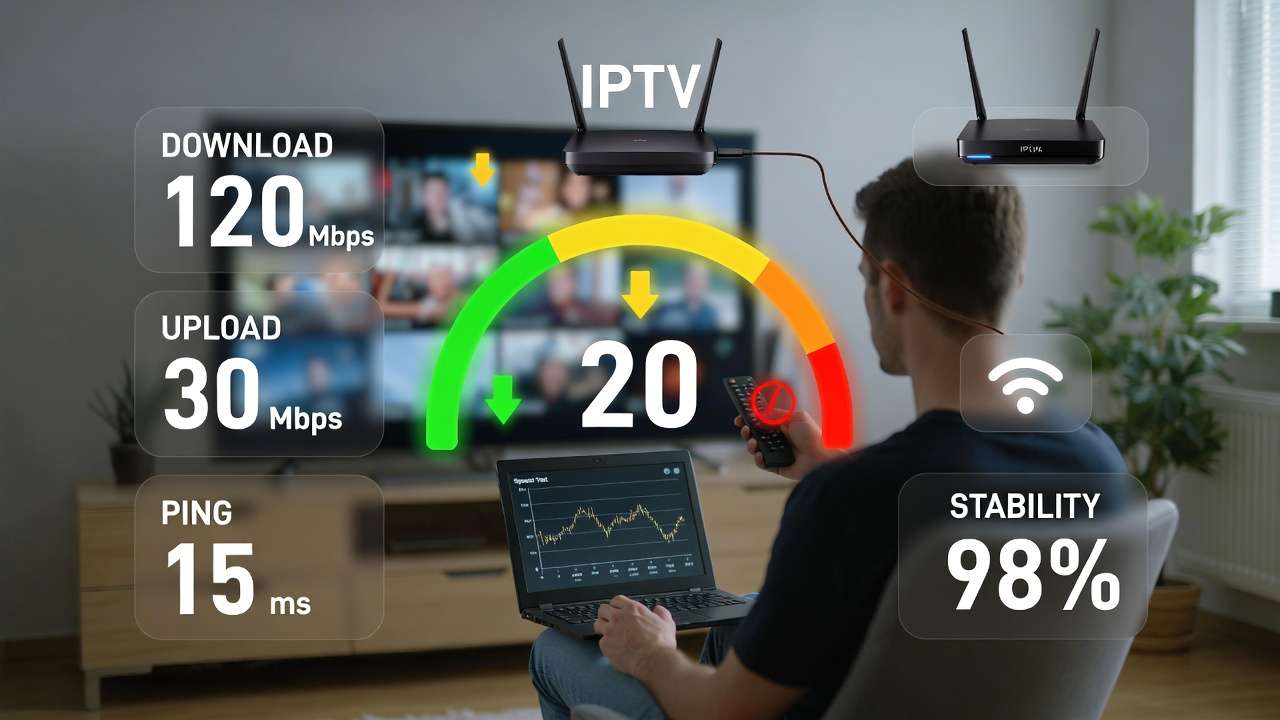
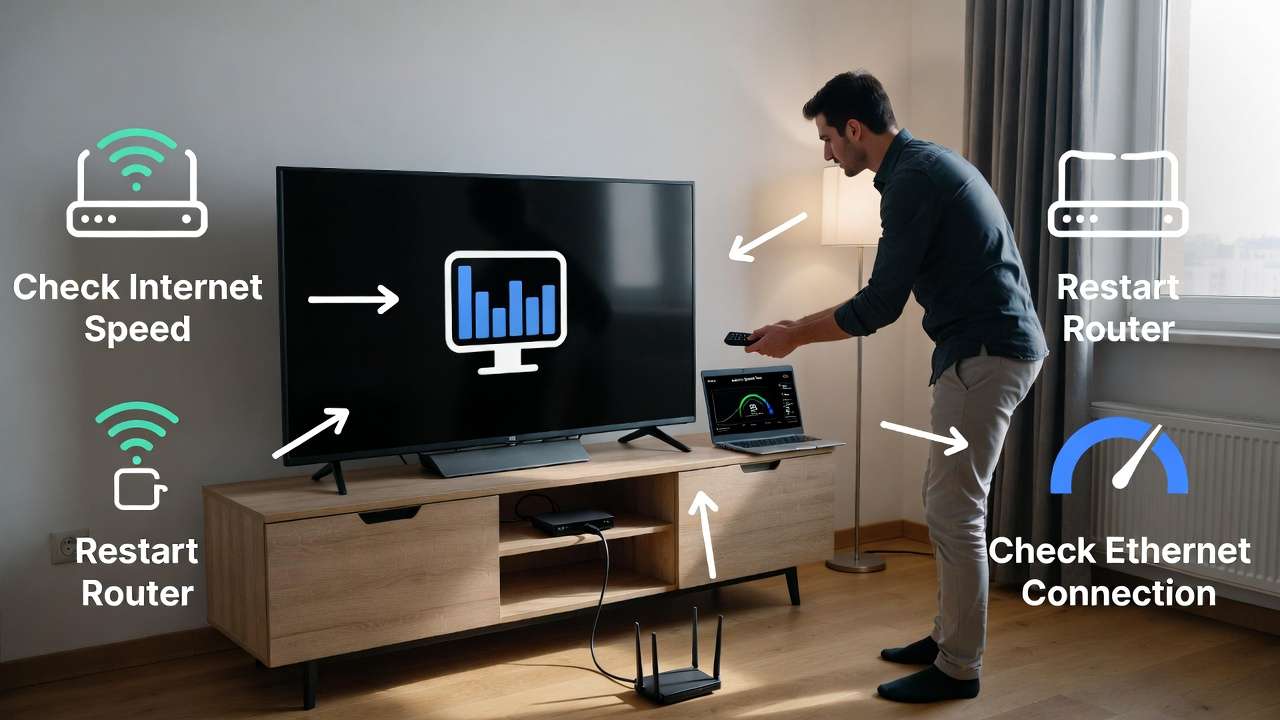
Don’t skip this step. Run a speed test directly on your streaming device — not your phone, not your laptop. The number that matters is the speed available at the device doing the streaming.
Go to Speedtest.net or Fast.com on your streaming device and run the test. Here’s what your results need to show:
| Stream Quality | Minimum Speed | Comfortable Speed |
| SD (480p) | 5 Mbps | 10 Mbps |
| HD (720p / 1080p) | 10 Mbps | 20 Mbps |
| Full HD Premium | 15 Mbps | 25 Mbps |
| 4K UHD | 25 Mbps | 50 Mbps+ |
One important thing most guides miss: speed alone doesn’t tell the full story. Also check your ping (should be under 50ms) and jitter (should be under 10ms). A 100 Mbps connection with high jitter causes more IPTV buffering than a steady 20 Mbps connection. Jitter means your data arrives in uneven bursts rather than a smooth flow — and that inconsistency directly triggers buffering.
If your speed is below the threshold for your stream quality:
- Restart your router — unplug it completely for 45 seconds before reconnecting
- Move your device closer to the router temporarily to rule out distance as the issue
- Switch to a wired Ethernet connection and re-test
- Contact your ISP if speeds are consistently below your subscribed plan’s rate
Fix 2 — Switch to Ethernet Before Anything Else
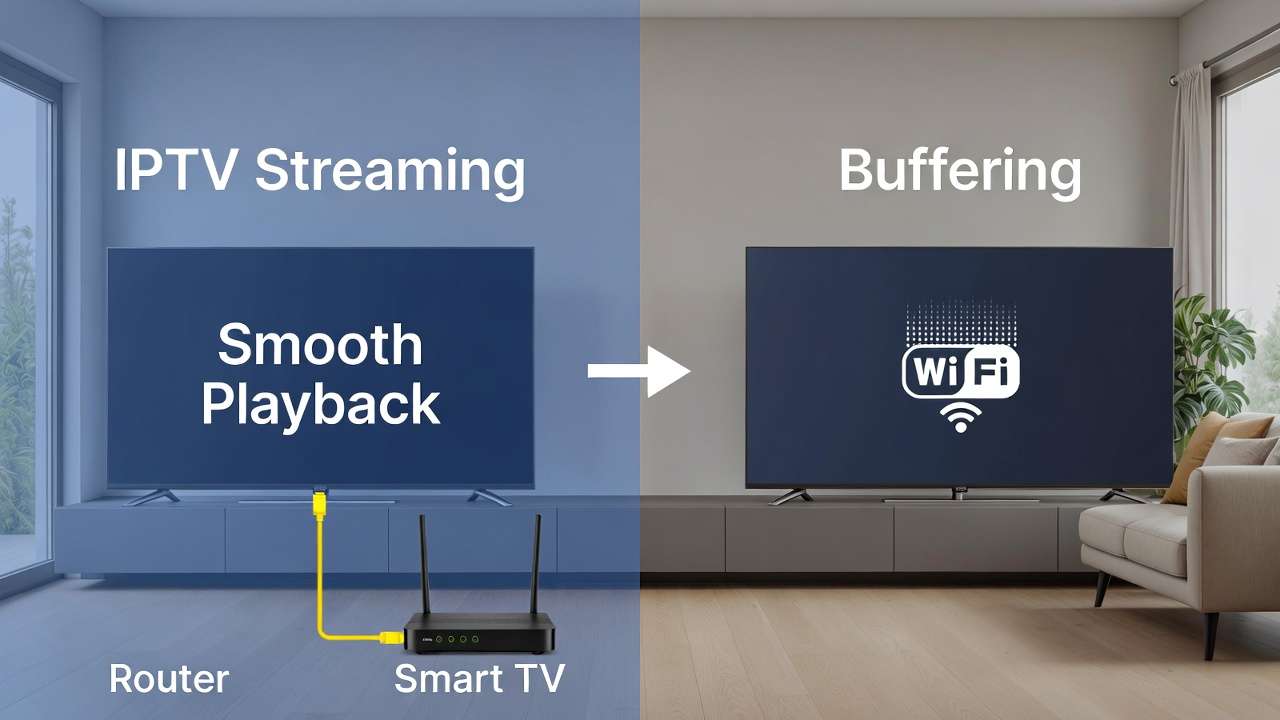
This single change fixes buffering for more users than any other step. Wi-Fi introduces variability that a wired connection simply doesn’t have — interference from neighboring networks, signal degradation through walls, and distance-related packet loss all disappear with Ethernet.
If running a cable directly isn’t practical in your home setup:
For Firestick users: An Ethernet adapter for Fire TV Stick plugs into the power port and gives you a direct wired connection. It costs under $15, and the improvement is immediate.
For devices far from your router: A powerline Ethernet adapter sends your internet signal through your home’s existing electrical wiring. It’s not quite as fast as direct Ethernet but dramatically more stable than Wi-Fi for streaming.
For Android TV boxes: Most already have a built-in Ethernet port — if you’re using Wi-Fi on an Android box by choice, switching to the built-in port is the fastest win available to you.
Get a Free Trial for 24 Hours
Don’t wait, don’t hesitate. Claim your free IPTV trial right now and see the difference for yourself before you commit to anything.
Get My Free Trial →Fix 3 — Clear Your IPTV App Cache
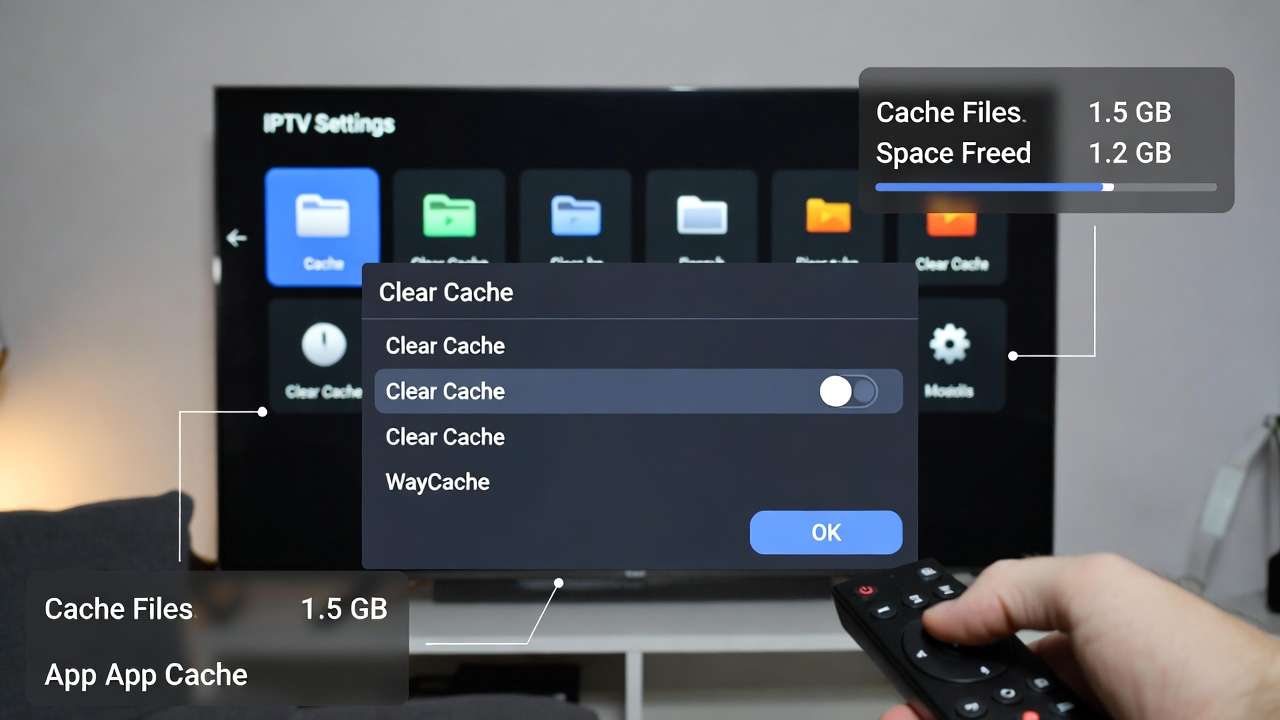
Cache buildup is the most overlooked cause of buffering that develops gradually over weeks of normal use. Your app was working fine, then slowly started buffering more — this is almost always cache-related.
On Firestick:
- Go to Settings → Applications → Manage Installed Applications
- Find your IPTV app (TiviMate, IPTV Smarters, etc.)
- Select Clear Cache, then Clear Data
- Reopen the app and re-enter your M3U URL or Xtream Codes credentials
On Android TV Box:
- Go to Settings → Apps → See All Apps
- Select your IPTV app
- Tap Clear Cache, then Clear Storage
- Log back in after reopening
On Samsung Smart TV:
- Go to Settings → Support → Device Care → Manage Storage
- Select your IPTV app and clear its cache
On LG Smart TV:
- Go to Settings → General → Storage
- Find your IPTV app and clear its stored data
On PC or Mac: Uninstall the app completely, download the latest version fresh, and reinstall. Desktop IPTV apps accumulate corrupted cache files that a simple restart doesn’t clear.
Make this a habit — clear your IPTV app cache every two to three weeks. It takes 30 seconds and prevents gradual performance decline before it starts affecting your viewing.
Get a Free Trial for 24 Hours
Don’t wait, don’t hesitate. Claim your free IPTV trial right now and see the difference for yourself before you commit to anything.
Get My Free Trial →Fix 4 — Increase Your Buffer Size Settings
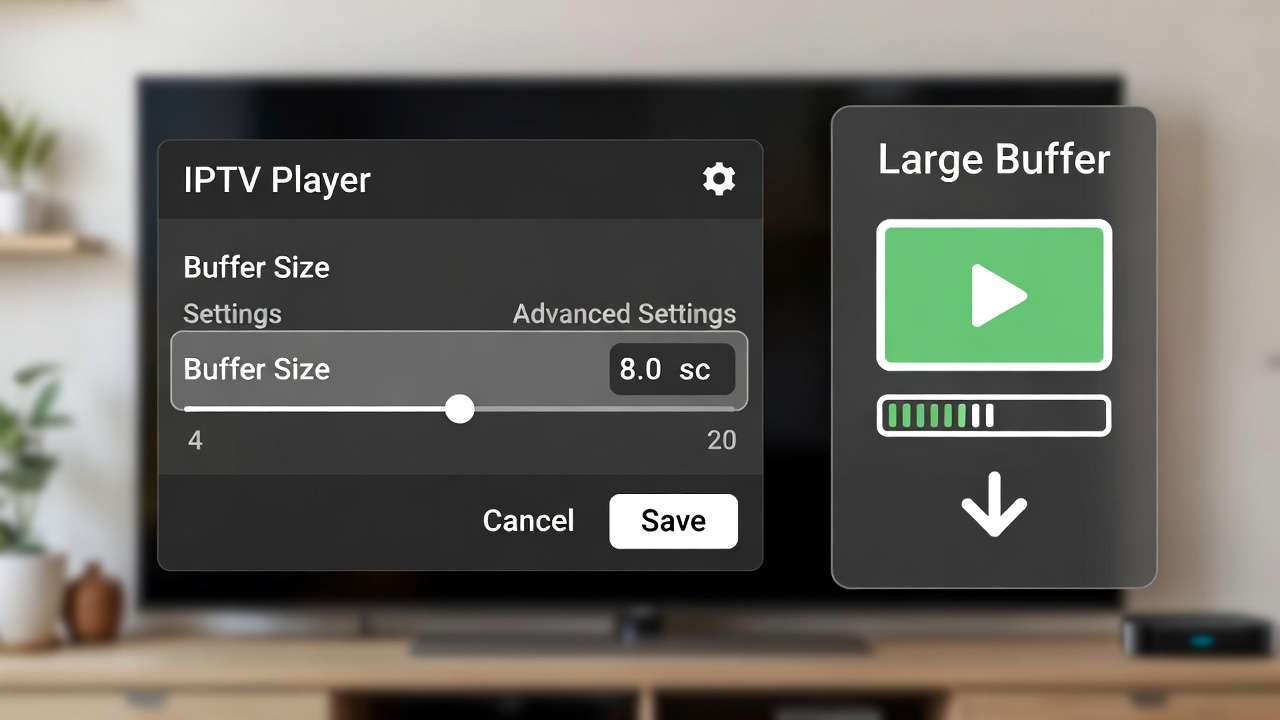
Most IPTV players let you manually increase how much data the app pre-loads before starting playback. A larger buffer means brief dips in your connection get absorbed silently rather than triggering a visible freeze.
In TiviMate:
- Open TiviMate and go to Settings → Playback
- Find Buffer Size and change it from the default to Medium or Large
- Save settings and restart a stream to test
In IPTV Smarters Pro:
- Go to Settings → Player Settings
- Find buffer duration and increase it to 5–10 seconds
- Apply and test your previously-freezing channels
In VLC on PC or Mac:
- Go to Tools → Preferences → Input / Codecs
- Find Network Caching (ms) and set it to 2000–3000
- Save, restart VLC, and test
This fix works especially well when your connection is fast but occasionally dips for a second or two. The larger buffer silently absorbs those brief drops before they interrupt your stream.
Get a Free Trial for 24 Hours
Don’t wait, don’t hesitate. Claim your free IPTV trial right now and see the difference for yourself before you commit to anything.
Get My Free Trial →Fix 5 — Use a VPN to Stop ISP Throttling
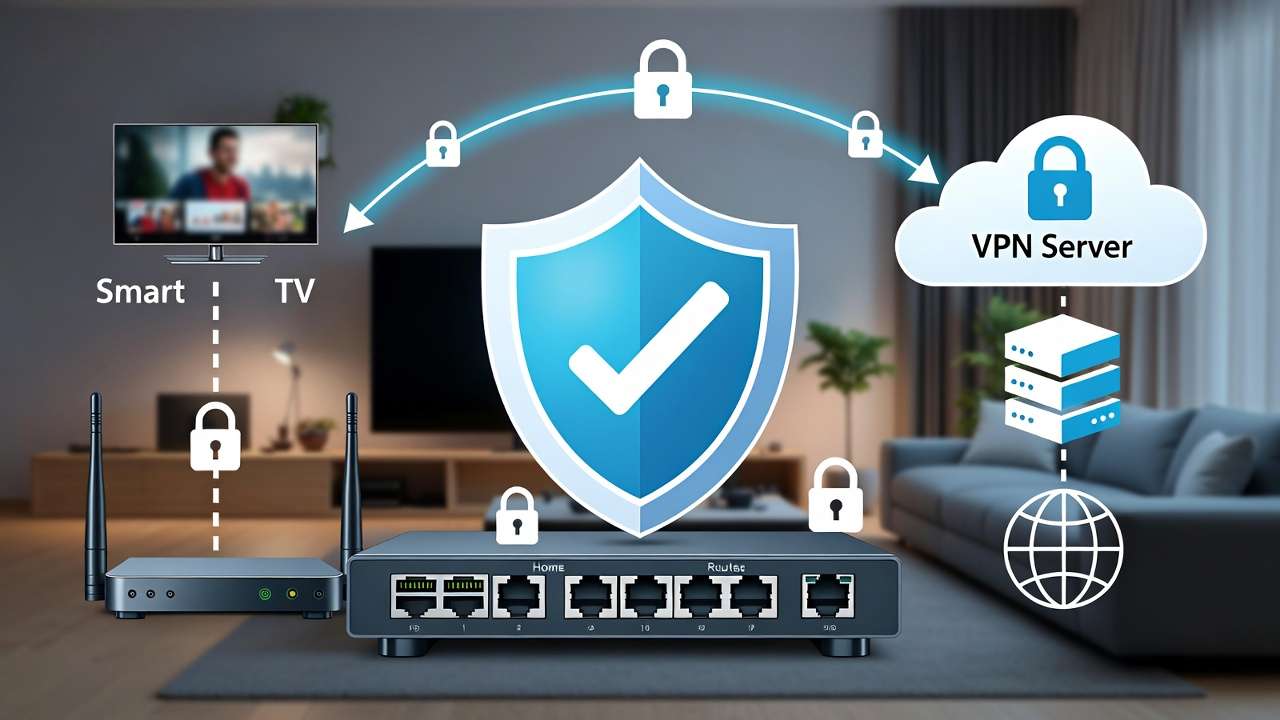
Here’s how to know if ISP throttling is your problem: your regular internet browsing and Netflix work fine, but IPTV specifically buffers during evening hours. Run a speed test at 2 PM and again at 9 PM — if evening speeds are noticeably lower, your ISP is throttling.
Bandwidth throttling is a documented practice where internet providers deliberately slow down specific types of traffic — including IPTV streaming — to manage overall network congestion during peak hours. A VPN encrypts your traffic so your ISP can’t identify it as IPTV streaming and therefore can’t selectively slow it down. Connect to a VPN server geographically close to your location to minimize the small amount of latency a VPN adds.
Look for a VPN with fast server speeds, a no-logs policy, and servers geographically close to your location. A quality paid VPN will maintain fast speeds on nearby servers without significant latency impact.Reliable VPN options for IPTV streaming in 2026 that hold up under real testing include NordVPN, Surfshark, and ExpressVPN — all maintain fast speeds on nearby servers without significant latency impact.
One honest caveat: A VPN only fixes throttling-related buffering. If your internet is already slow or your provider’s servers are congested, adding a VPN adds latency without solving anything. Use it specifically when ISP throttling is confirmed, not as a catch-all solution.
Fix 6 — Cut Down Network Congestion at Home
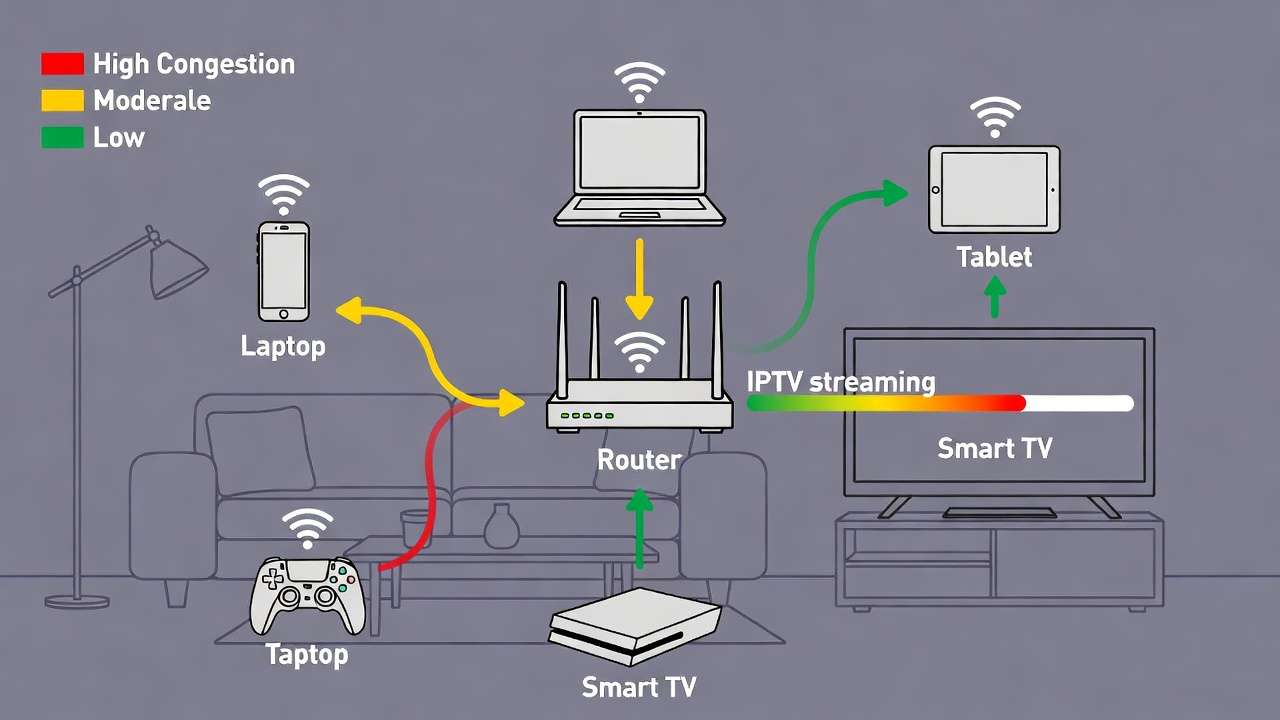
Every device sharing your home network competes for bandwidth. Someone gaming online in another room, a laptop running automatic updates, a smart home device syncing in the background — all of it reduces the effective bandwidth your IPTV stream gets.
Practical steps to free up bandwidth during streaming:
- Pause any active downloads across all devices on the network
- Enable Quality of Service (QoS) in your router admin panel — this lets you tell the router to prioritize traffic from your streaming device over everything else
- Connect your streaming device to your router’s 5GHz band instead of 2.4GHz — 5GHz is faster over short distances and less congested by neighboring networks
- Schedule large downloads and system updates for overnight rather than evening prime time
QoS setup varies by router brand, but most modern routers include it. Search your router model name plus “QoS setup” for specific instructions — it’s one of the most impactful network changes you can make for streaming stability.
Get a Free Trial for 24 Hours
Don’t wait, don’t hesitate. Claim your free IPTV trial right now and see the difference for yourself before you commit to anything.
Get My Free Trial →Fix 7 — Update Apps and Firmware Regularly
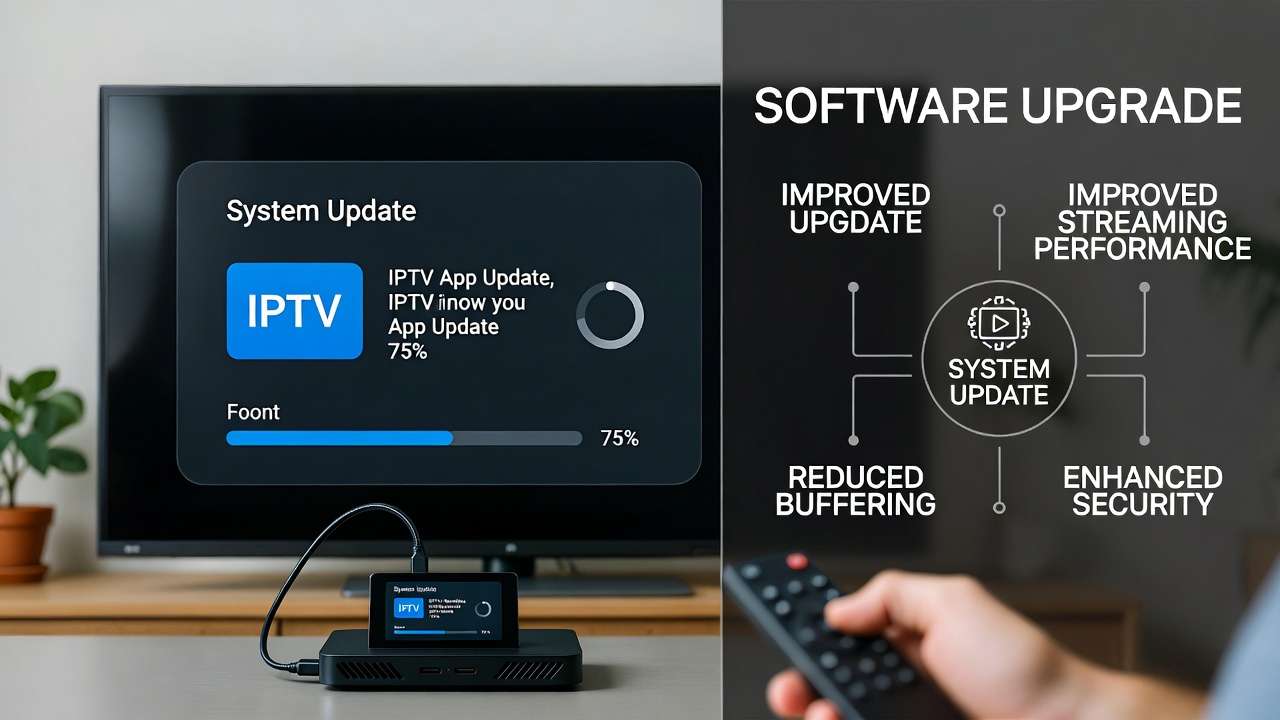
Running outdated IPTV app versions causes buffering that has nothing to do with your internet or device. App developers push updates specifically to fix playback bugs, memory leaks, and streaming protocol issues. Skipping updates means carrying known problems that have already been fixed.
Update your IPTV app:
- Firestick: Open the Appstore, search for your app name, select it and choose Update if available
- Android TV Box: Open Google Play Store, search for your app, update if a new version exists
- Smart TV: Check your TV’s built-in app store for the IPTV app listing and update from there
Update your device firmware:
- Firestick: Settings → My Fire TV → About → Check for Updates
- Android TV Box: Settings → About → System Update
- Samsung TV: Settings → Support → Software Update
- LG TV: Settings → General → About This TV → Check for Updates
Always restart your device after updating rather than just closing and reopening the app. Updates sometimes don’t fully apply until the device reboots.
Fix 8 — Free Up Device Resources Before Streaming
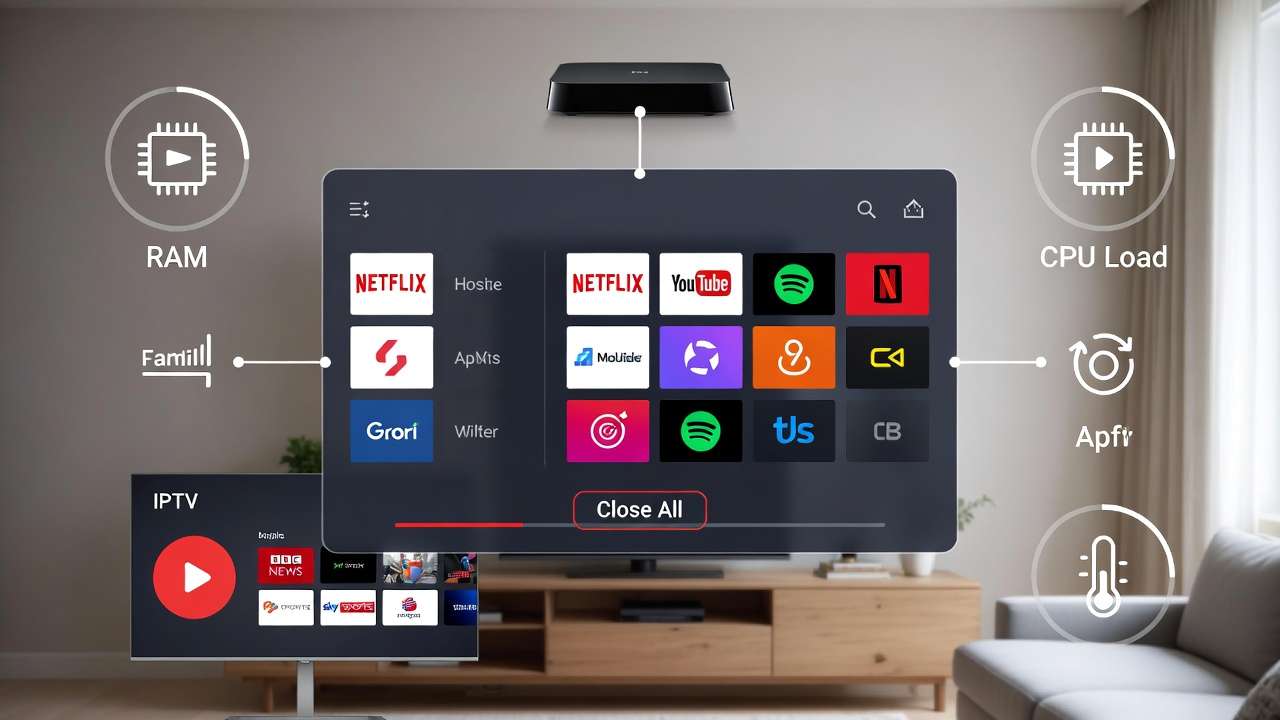
Your streaming device running too many background processes is a hardware bottleneck that no network fix will solve. Here’s how to give your IPTV player the resources it needs:
- Close every background app before launching your IPTV player — on Fire TV Stick, hold the Home button and swipe apps away in the App Switcher
- Reboot your device before long streaming sessions — a fresh boot clears RAM that background processes have been slowly consuming
- Turn off automatic app updates during streaming — on Firestick go to Settings → Applications → Appstore → Automatic Updates and disable it
- Keep your device ventilated — devices that overheat automatically throttle their processor speed, which directly causes streaming freezes
- Uninstall apps you don’t use — every installed app consumes background resources even when not actively running
If you’re running an original first-generation Fire TV Stick or an Android box with less than 2GB RAM, software optimization has real limits. These devices weren’t built for the stream quality standards of 2026. Upgrading to a Firestick 4K Max or a current-generation Android box is the only real fix at that point. Our comparison of Firestick vs Android Box for IPTV breaks down which hardware makes sense for different use cases if you’re considering an upgrade.
Get a Free Trial for 24 Hours
Don’t wait, don’t hesitate. Claim your free IPTV trial right now and see the difference for yourself before you commit to anything.
Get My Free Trial →Fix 9 — Switch to an External Video Player
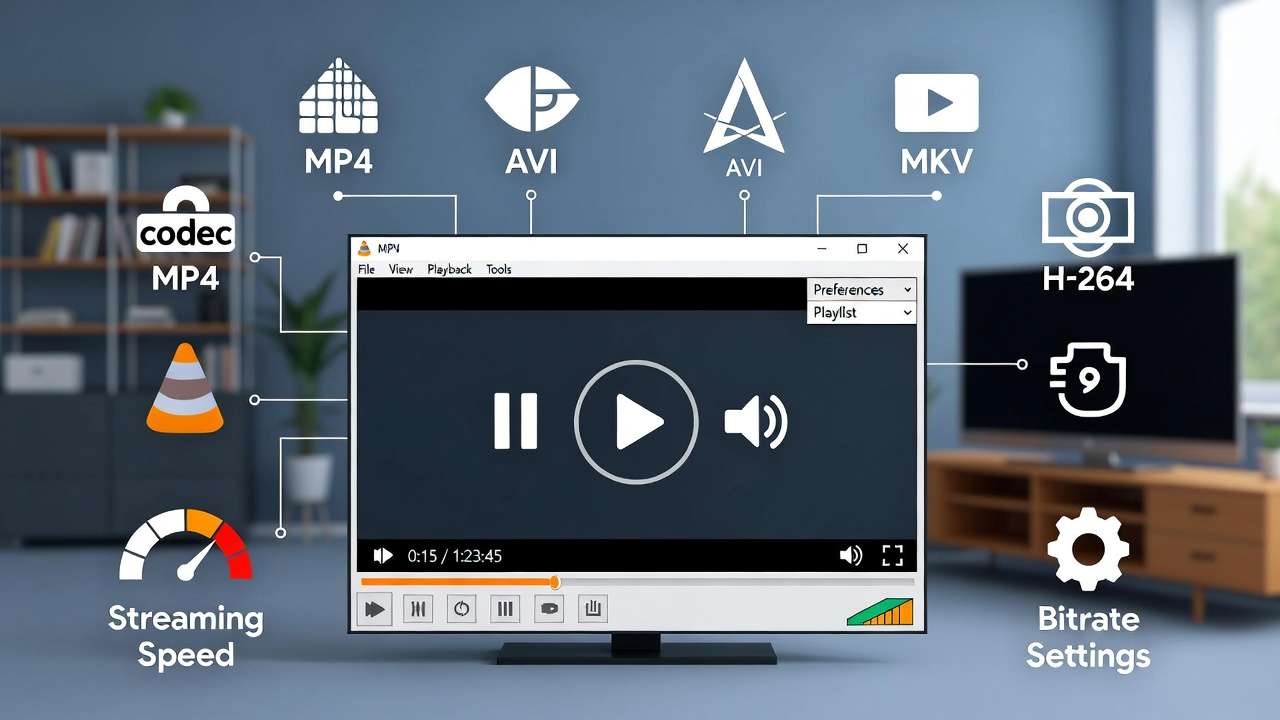
Some IPTV streams use encoding formats that built-in players struggle with. If specific channels freeze while others play fine, the issue is codec compatibility rather than network speed.
Switching to VLC or MX Player as your external playback engine resolves codec-related freezing without changing anything else about your setup.
In TiviMate:
- Go to Settings → Playback → Player
- Select External Player
- Choose VLC from the list
- Test the channels that were previously freezing
In IPTV Smarters Pro:
- Go to Settings → Player Settings
- Switch to External Player
- Select VLC or MX Player
VLC supports a wider range of video codecs than any built-in IPTV player, which is why it fixes freezing that appears inconsistent — certain streams use formats the default player simply can’t handle smoothly.
Fix 10 — Switch Servers or Change Your Provider
You’ve tried everything above and buffering persists. At this point, the problem is on your provider’s end — not yours.
Server congestion, inadequate bandwidth allocation, and aging infrastructure on the provider’s side produce buffering that no device-side fix will resolve. Most quality providers offer multiple server options — switching to an alternate server for your region often resolves peak-hour freezing immediately.
If alternate servers don’t help, that’s a clear signal the provider’s infrastructure is consistently underpowered for the number of users it handles. Testing a different provider is the logical next step.
Nova Prime IPTV runs dedicated high-speed servers with managed bandwidth allocation specifically to prevent the peak-hour congestion that causes server-side buffering. Their IPTV free trial lets you test performance on your exact device and connection — no payment required — before making any decision. If anything doesn’t work during setup, the IPTV support team is reachable 24/7.
Get a Free Trial for 24 Hours
Don’t wait, don’t hesitate. Claim your free IPTV trial right now and see the difference for yourself before you commit to anything.
Get My Free Trial →Device-Specific Fixes for Fire TV Stick, Android Box, Smart TV & PC
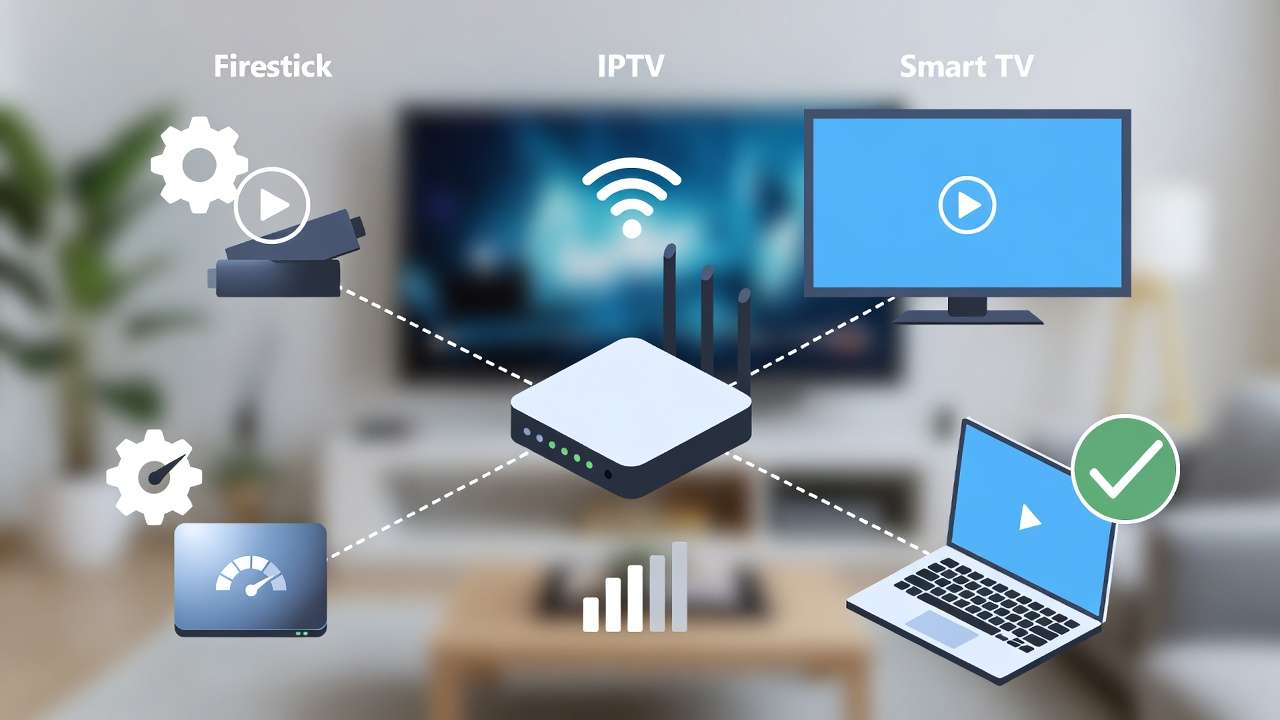
Firestick Buffering Fixes Most Guides Skip
The Firestick has several default settings that actively hurt streaming performance. These aren’t bugs — they’re features designed for general use that happen to interfere with IPTV.
Disable data monitoring: Settings → Preferences → Data Monitoring → Off. This background process tracks app data usage and consumes the RAM your IPTV player needs.
Turn off automatic updates: Settings → Applications → Appstore → Automatic Updates → Off. Automatic updates frequently trigger mid-stream and steal bandwidth at the worst possible moment.
Enable performance mode via Developer Options: Go to Settings → My Fire TV → About and tap the build number seven times rapidly. This unlocks Developer Options. Inside, you’ll find performance-related settings that improve rendering for video-heavy applications.
Minimize installed apps: Every app installed on your Fire TV Stick consumes background resources. Uninstall anything you don’t actively use — games, shopping apps, and pre-installed bloatware all compete for the limited RAM available.
Android TV Box Specific Fixes
Android boxes have more headroom than Firesticks but develop their own performance issues over time.
- Disable Play Store auto-updates — go to Play Store settings and switch updates to manual only
- Use a lightweight IPTV player — TiviMate uses less RAM than heavier apps and handles large channel lists more efficiently
- Check available internal storage — Android boxes with under 500MB free storage run noticeably slower; delete unused apps and clear stored data regularly
- Factory reset if the device is over two years old — accumulated system files and residual app data slow older Android boxes in ways that individual fixes can’t fully address
Smart TV Specific Optimizations
Smart TVs are convenient for IPTV but their operating systems have real limitations compared to dedicated streaming hardware.
- Always use the Ethernet port if your TV has one — Smart TV Wi-Fi antennas are typically weaker than those in dedicated streaming devices
- Disable picture processing features during IPTV — motion smoothing, noise reduction, and HDR enhancement all add processing overhead that can slow stream handling on older Smart TV chipsets
- Clear the TV’s system cache monthly — most Smart TVs accumulate system cache through normal use; this slows all app performance over time, not just IPTV
- Check firmware updates quarterly — Smart TV manufacturers push network stack improvements through firmware updates that directly affect streaming app performance
Get a Free Trial for 24 Hours
Don’t wait, don’t hesitate. Claim your free IPTV trial right now and see the difference for yourself before you commit to anything.
Get My Free Trial →PC and Mac Specific Fixes
Desktop users have more optimization options than any other platform — and more ways for background processes to interfere with streaming.
- Use VLC with network caching set to 2000–3000ms for the most stable playback of any desktop option
- Close Chrome and Firefox completely before streaming — both browsers consume significant RAM even when minimized and not actively in use
- Update network adapter drivers on Windows — outdated drivers cause the kind of inconsistent connection speeds that trigger buffering even on fast internet plans
- Use Ethernet over laptop Wi-Fi whenever practical — laptop Wi-Fi antennas are physically smaller and less powerful than desktop or dedicated streaming device antennas
How to Keep IPTV Running Smoothly Long-Term
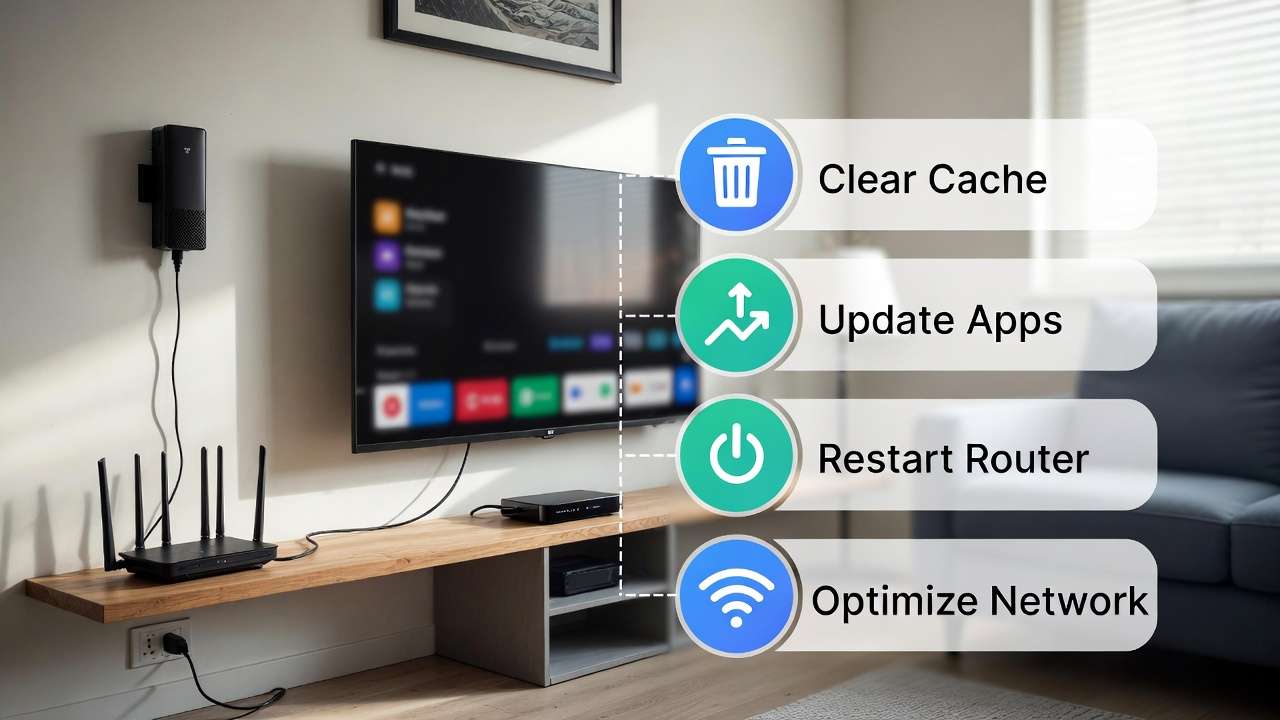
Build a Simple Monthly Maintenance Routine
Most buffering problems that users think appeared suddenly actually developed gradually through skipped maintenance. A consistent routine prevents the slow degradation that turns a perfectly working setup back into a buffering problem.
Every two weeks:
- Clear your IPTV app cache
- Force-close background apps before streaming
Every month:
- Check for app and firmware updates
- Restart your router during off-peak hours
- Clear your Smart TV or device system cache if applicable
Every three months:
- Review your internet speed test results against your subscribed plan speed
- Check whether your IPTV provider has updated their server infrastructure or added new server options
This routine takes less than ten minutes a month. It prevents the vast majority of gradual performance issues before they affect your viewing.
Get a Free Trial for 24 Hours
Don’t wait, don’t hesitate. Claim your free IPTV trial right now and see the difference for yourself before you commit to anything.
Get My Free Trial →What to Actually Look for in an IPTV Provider
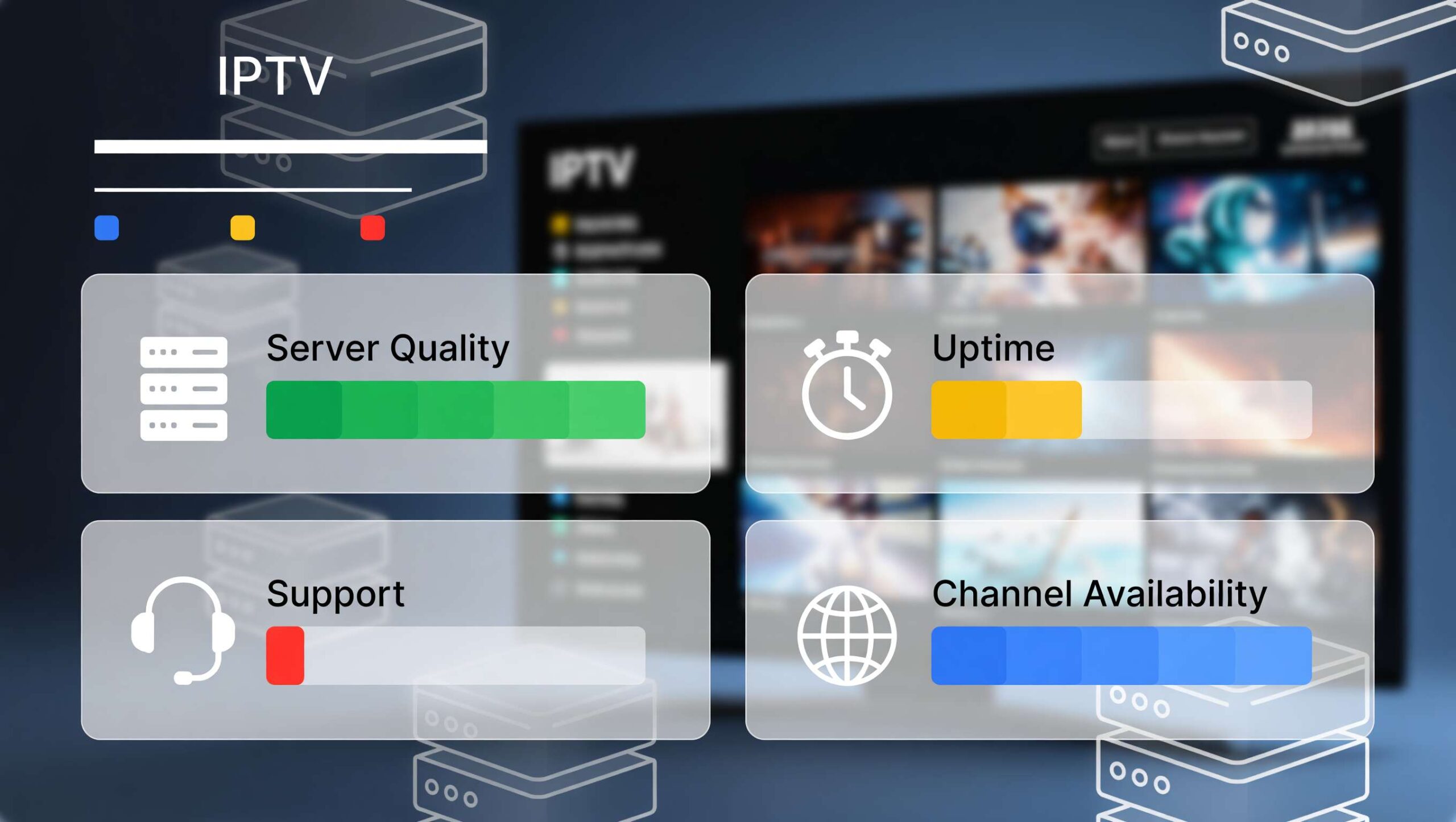
Choosing the right provider is as important as any device-side optimization. Poor server infrastructure on the provider’s end causes buffering that no amount of router configuration or cache clearing will fix.
When you evaluate any IPTV provider — whether you’re starting fresh or considering switching — check these things specifically:
- Server infrastructure type — dedicated servers handle peak-hour load significantly better than shared hosting; ask the provider directly or look for it in their documentation
- Multiple server options per region — quality providers let you switch servers within the app when one becomes congested; this is a strong indicator of infrastructure investment
- Uptime track record — look for user reviews that specifically mention stability during evenings and major live events, not just overall satisfaction
- Real support availability — test their IPTV support before subscribing by asking a technical question; response time and quality tell you everything about how they’ll handle a real problem
- Channel coverage depth — particularly important if IPTV USA channels or specific sports coverage matters to you; a large channel count number means nothing if your preferred content isn’t in the lineup
If you’re currently experiencing server-side buffering and want to test a provider built specifically around infrastructure stability, Nova Prime IPTV’s free trial gives you full access — no credit card required. Their IPTV subscription plans are structured across multiple tiers, so you can start with a 1-month IPTV subscription before considering a 6-months IPTV subscription or 1 year IPTV subscription once you’ve confirmed performance on your setup.
For a broader picture of how IPTV holds up against traditional pay TV on reliability, cost, and channel quality, the IPTV vs cable TV comparison covers every trade-off honestly. And if you’re still setting up your streaming environment from scratch, our full setup IPTV guide walks through every device step by step.
Get a Free Trial for 24 Hours
Don’t wait, don’t hesitate. Claim your free IPTV trial right now and see the difference for yourself before you commit to anything.
Get My Free Trial →When to Contact Your Provider — And What to Say
Information That Gets Your Problem Solved Fast
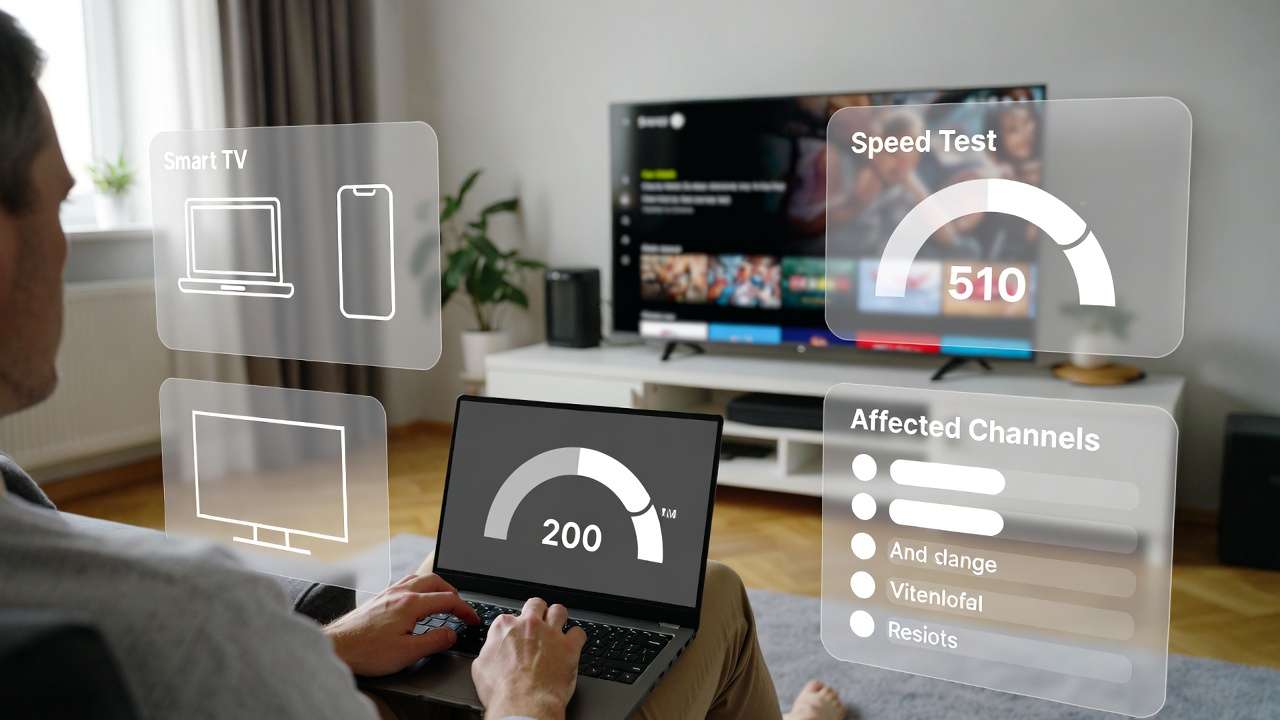
A support request that says “my stream keeps buffering” gets a slow, generic response. A detailed ticket gets a fast, specific solution. When you contact your IPTV provider’s support team, include all of the following upfront:
- Your device type and model (Fire TV Stick 4K Max, Android box brand and model, Smart TV make and model)
- Your IPTV app name and version number
- Your internet speed test results — screenshot from the streaming device specifically
- Which channels are affected — all channels, specific categories like sports or HD, or only certain streams
- When buffering occurs — constantly, only during evenings, only during live events
- Every fix you’ve already tried — this prevents the support team from sending you back through the troubleshooting steps you’ve completed
A provider with properly managed infrastructure will use this information to offer an alternate server, a region-specific stream link, or a configuration fix within a single interaction. How quickly and specifically a provider responds to a detailed support request tells you more about their service quality than any marketing claim. Reach Nova Prime’s team directly through the contact IPTV page.
Get a Free Trial for 24 Hours
Don’t wait, don’t hesitate. Claim your free IPTV trial right now and see the difference for yourself before you commit to anything.
Get My Free Trial →Frequently Asked Questions
Why does my IPTV only buffer at night?
Evening buffering points to one of two causes. Run a speed test at 2 PM and again at 9 PM. If your speed drops significantly in the evening, your ISP is throttling — a VPN will fix this. If your speed stays consistent but buffering increases anyway, your IPTV provider’s servers are congested with peak-hour traffic. The fix there is either switching to an alternate server within your provider’s app or changing providers.
Does a VPN always fix IPTV buffering?
No, a VPN specifically addresses ISP throttling. It does not affect slow internet connections, overloaded provider servers, device hardware limitations, or cache-related performance issues. Using a VPN when throttling isn’t the cause adds latency without solving anything. Confirm ISP throttling first through the speed test comparison above before trying a VPN.
How much internet speed do I actually need for IPTV?
For stable HD streaming, you need 10 Mbps consistently available at your streaming device — 20 Mbps gives comfortable headroom when other devices are also using the network. For 4K streaming, 25 Mbps minimum with 50 Mbps recommended. These numbers refer to a stable, low-jitter speed at the streaming device specifically, not your plan’s advertised maximum.
Is buffering always my internet connection’s fault?
No — and this is the most common misdiagnosis. If your speed test shows adequate speeds but IPTV buffers anyway, look at server congestion, device performance, outdated apps, or ISP throttling before blaming your connection. Streaming platforms like Netflix rarely buffer on the same connection because they use content delivery networks with servers geographically close to every user. IPTV providers vary significantly in their server infrastructure quality.
Which devices handle IPTV best in 2026?
From a pure performance standpoint, a current-generation Android TV box with 4GB RAM handles 4K IPTV streams most reliably. The Fire TV Stick 4K Max is the best value option for most users and handles HD and 4K streams smoothly on a properly optimized setup. Original first-generation Firesticks and Android boxes with 1–2GB RAM consistently struggle with 2026 stream quality standards, regardless of connection speed.
Why does my IPTV buffer on fast internet?
Speed is only one component of connection quality. High jitter — where data arrives in uneven bursts rather than a smooth flow — causes buffering on fast connections. Packet loss causes similar issues. Run a full network quality test rather than just a speed test. Ping above 50ms or jitter above 10ms will cause IPTV buffering even on a 200 Mbps connection. A wired Ethernet connection typically resolves both issues immediately.
Get a Free Trial for 24 Hours
Don’t wait, don’t hesitate. Claim your free IPTV trial right now and see the difference for yourself before you commit to anything.
Get My Free Trial →Final Thoughts
IPTV buffering in 2026 is almost always fixable — the key is identifying the actual cause rather than trying everything and hoping something works.
Start with the speed test and Ethernet switch. These two steps alone resolve buffering for the majority of users. If that doesn’t fully solve it, clear your app cache, increase your buffer size, and update your apps. Work through the fixes in order rather than jumping to the most complex ones first.
When device-side fixes don’t solve persistent buffering, the issue is your provider’s server infrastructure. That’s not a problem; you can troubleshoot your way around — it requires either switching servers or switching providers.
A great IPTV experience comes from two things working together: a well-optimized device and network on your side, and a provider with dedicated, properly managed infrastructure on theirs. Get both right and buffering becomes genuinely rare.
If server-side stability is the gap in your current setup, Nova Prime IPTV’s IPTV free trial gives you the full service to test — no payment, no commitment — on your exact device and connection before you decide anything.
Get a Free Trial for 24 Hours
Don’t wait, don’t hesitate. Claim your free IPTV trial right now and see the difference for yourself before you commit to anything.
Get My Free Trial →